
 Fast & Reliable Local Repairs
-
Free Diagnostics
We diagnose and explain your issue clearly before any work.
-
Pickup & Delivery
Hassle-free collection and drop-off right at your door.
 Free Diagnostics
 Pickup & Delivery
How to Safely Recycle or Wipe an Old Computer Before Disposal
Upgrading to a new computer is exciting, but what happens to your old machine? Tossing an aging laptop or desktop into the regular trash or dropping it at a donation center without proper preparation is a massive security risk. Even if you drag files to the recycling bin or delete your user profile, your personal photos, tax forms, and saved passwords remain embedded on the storage drive, waiting to be recovered.
Here is how to properly strip your personal data, secure your files, and responsibly recycle your old computer.
Step 1: Back Up and Verify Your Data
Before you touch a single setting to erase your machine, make absolute certain you have everything you need transferred over to your new device or external storage drive.
What to Check Before Wiping:
- Personal Files: Scan your Documents, Pictures, Downloads, and Desktop folders for stray files.
- Browser Data: Ensure your bookmarks, saved passwords, and autofill forms are synced to your online account or exported.
- License Keys: If you own specialized software licenses (like Microsoft Office or Adobe apps), deactivate them on this machine so you can transfer them to your new setup.
Step 2: Permanently Erase Your Hard Drive
Simply formatting a drive or reinstalling an operating system leaves residual data fragments that specialized software can pull back up. To protect your identity, your storage drive needs a complete, secure wipe.
- On Modern SSDs: If your computer runs on a Solid State Drive (SSD), use the manufacturer's secure erase utility or your operating system's built-in "Reset This PC" (Windows) or "Erase All Content and Settings" (Mac) feature with full data overwriting enabled.
- On Older Mechanical Hard Drives (HDDs): Traditional spinning hard drives require multi-pass zero-fill utilities (such as DBAN) to completely overwrite every sector with random data.
- The Ultimate Guarantee: If your computer is completely dead, won't turn on, or you want 100% peace of mind, bring it to a local repair shop where technicians can physically shred or degauss the internal storage drive.
Step 3: Unlink and De-authorize Accounts
If you are donating your machine or selling it to someone else, make sure your digital signature is completely removed from the hardware layer.
- Sign out of your cloud accounts (Microsoft ID, Apple iCloud, Google Chrome profile).
- De-authorize the computer from any active subscription management portals so the new owner starts with a completely blank slate.
Step 4: Recycle Responsibly
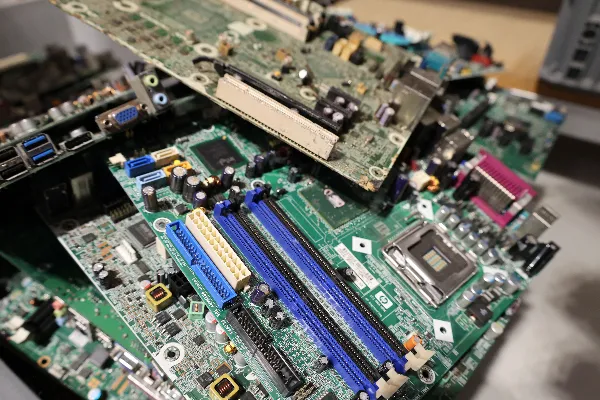
Electronics contain heavy metals, toxic chemicals, and valuable circuit components that should never end up in a standard municipal landfill.
- Take your wiped computer to certified e-waste recycling facilities or local electronics retailers that offer free drop-off recycling programs.
- Alternatively, drop your device off at a trusted local tech repair center where old hardware components are broken down, harvested for reusable parts, or safely processed according to environmental safety standards.
Need Help Clearing Out an Old PC?
Let our technicians perform military-grade data wiping and secure hardware recycling for your devices.
Get Device Recycling Help