
 Fast & Reliable Local Repairs
-
Free Diagnostics
We diagnose and explain your issue clearly before any work.
-
Pickup & Delivery
Hassle-free collection and drop-off right at your door.
 Free Diagnostics
 Pickup & Delivery
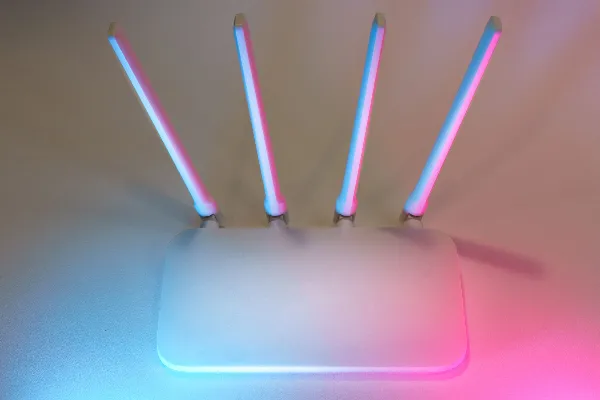
How-To Reset Your Home Wi-Fi Router and Modem Correctly
When your internet connection starts lagging, videos buffer endlessly, or your smart devices drop offline, the universal first instinct is to fix it by restarting your networking equipment. However, simply yanking the power cord out for two seconds and plugging it right back in rarely solves deep routing or IP lease conflicts.
Doing a proper power cycle clears lingering memory bugs, re-establishes a clean handshake with your internet service provider, and restores blazing-fast speeds. Here is the correct way to reset your home Wi-Fi router and modem.
The Difference Between a Soft Restart and a Factory Reset
Before touching any hardware, it is important to know the difference between restarting your equipment and wiping it clean.
- A Power Cycle (Restart): Safely turns your devices off and on to clear temporary memory cache and fix connection drops without deleting any of your custom Wi-Fi names or passwords. This is what you should do 99% of the time.
- A Factory Reset: Involves holding down a tiny pinhole reset button for 10 seconds. This wipes your custom network name and password entirely, returning the router to out-of-the-box settings. Only use this as an absolute last resort if your hardware is completely unresponsive.
Step-by-Step: How to Properly Restart Your Network
Follow this specific sequence to ensure your modem and router boot up in the correct communication order.
1. Unplug Both Devices
- Unplug the power cords from the back of both your modem (the box provided by your ISP that brings internet into the house) and your wireless router (the device broadcasting your Wi-Fi signal). If you have a single all-in-one gateway unit, simply unplug that single unit.
2. Wait at Least 30 Seconds
- Do not plug them back in immediately. Waiting at least 30 seconds ensures that all internal capacitors drain completely, completely clearing the volatile memory cache and forcing your hardware to drop old, stuck IP connections.
3. Power Up the Modem First
- Plug your modem back into the electrical wall outlet first.
- Watch the status indicator lights. Wait approximately 2 to 3 minutes until the online or internet light turns solid, indicating that it has successfully re-established a stable connection with your internet provider.
4. Power Up Your Router Second
- Once your modem is fully online, plug your Wi-Fi router back into power.
- Give it another 2 minutes to boot up, load its firmware, and start broadcasting your wireless signal. Check your phone or laptop to confirm your Wi-Fi network name reappears and connects successfully.
What to Do If Reseting Doesn't Fix Your Internet
If you have properly power-cycled your modem and router but your internet remains painfully slow or keeps dropping out entirely, the issue may run deeper:
- Check for Outages: Log into your ISP's mobile app using cellular data to check if a neighborhood-wide service outage is active in your area.
- Inspect Hardware Age: Routers and modems degrade over time. If your equipment is more than four to five years old, it may struggle to handle modern multi-gigabit broadband speeds and heavy smart-home data loads.
- Upgrade Your Coverage: If your Wi-Fi signal drops the moment you walk into another room, a basic router reset won't fix structural dead zones.
If you need help setting up a robust mesh Wi-Fi network, optimizing your home layout, or running hardwired Ethernet drops, bring your networking challenges to our local shop. We'll get your home connected at maximum speed!
Struggling With Slow Wi-Fi or Dead Zones?
Let our local network experts optimize your home coverage, configure your hardware, and eliminate dropouts.
Get Wi-Fi Help