
 Fast & Reliable Local Repairs
-
Free Diagnostics
We diagnose and explain your issue clearly before any work.
-
Pickup & Delivery
Hassle-free collection and drop-off right at your door.
 Free Diagnostics
 Pickup & Delivery
How to Maintain Your Freshly Optimized PC
Bringing your computer in for a professional tune-up or optimization feels incredible. Suddenly, your sluggish desktop boots up in seconds, web pages snap open instantly, and the frustrating freezes and lags are completely gone.
However, computers are like cars: even after a major service tune-up, daily use, background downloads, and digital clutter will slowly drag performance down over time.
Here are the best habits to maintain your freshly optimized PC and keep it running lightning-fast for months to come.
1. Manage Your Startup Apps Wisely
One of the biggest culprits behind a sluggish computer is "startup bloat." Many popular applications (like Spotify, Discord, torrent clients, and cloud backup tools) automatically configure themselves to launch the exact second your computer turns on, hogging memory and slowing down your boot time.
How to Keep It Clean:
- On Windows: Press
Ctrl + Shift + Escto open the Task Manager, click on the Startup apps tab (the speedometer icon), and disable any non-essential programs from launching automatically. - On Mac: Go to System Settings, select General, click Login Items, and clear out any unnecessary background items under "Open at Login."
2. Keep Your Operating System and Drivers Updated
Software updates aren't just about getting cool new features; they contain critical security patches, bug fixes, and performance enhancements that prevent your system from slowing down or crashing.
- Let your operating system handle regular background updates, but make it a habit to check manually once a month to ensure pending updates install properly.
- Keep your graphics card and hardware drivers up to date, especially if you use your computer for gaming, video editing, or heavy graphic design work.
3. Practice Good Browser Hygiene
Your web browser is likely the most heavily used app on your computer. Over time, cached data, runaway extension scripts, and dozens of open tabs can consume gigabytes of memory.
- Close Unused Tabs: Leaving 70 tabs open strains your RAM. Use bookmarks or reading lists to save pages for later rather than keeping them active in memory.
- Audit Extensions: Periodically check your browser extensions menu and uninstall any add-ons, coupon finders, or custom search bars you no longer use.
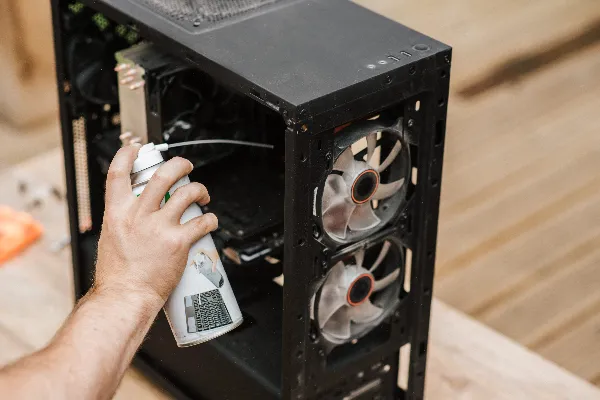
4. Give Your Computer a Regular Physical Dusting
Dust is an electronic device's worst enemy. When dust bunnies accumulate inside your laptop fans or desktop heat sinks, airflow chokes. Your system responds by aggressively throttling down its processor speed to prevent overheating, making your PC feel sluggish.
- Every few months, shut down your computer completely and use a can of compressed air to gently clear out dust vents and ports.
- Never use a vacuum cleaner directly on internal computer components, as it generates static electricity that can permanently fry your motherboard.
5. Know When It Is Time for Professional Help
Even with meticulous digital housekeeping, software bloat and background registry friction accumulate over the years. If your computer starts crawling again despite your best maintenance efforts, don't struggle through the frustration.
Bring your machine into our local shop for a routine health check, deep cleaning, or hardware upgrade, and let us keep your technology running at its absolute best!
Want Your PC to Run Like New Again?
Let our local technicians perform a professional software optimization and hardware tune-up on your system.
Schedule a PC Tune-Up