
 Fast & Reliable Local Repairs
-
Free Diagnostics
We diagnose and explain your issue clearly before any work.
-
Pickup & Delivery
Hassle-free collection and drop-off right at your door.
 Free Diagnostics
 Pickup & Delivery
Connecting Your Smart TV and Streaming Devices
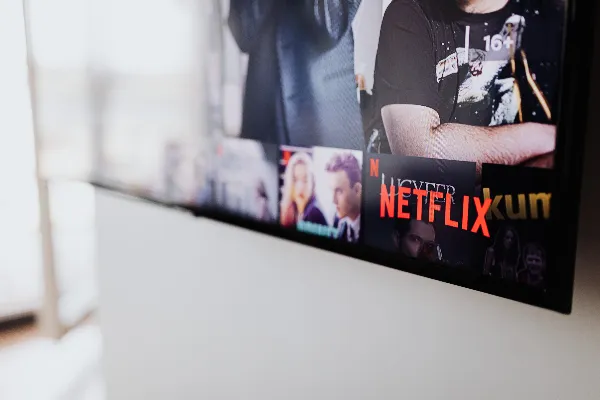
Modern home entertainment offers endless viewing options, from Netflix and YouTube to live sports and classic movies. However, getting a new smart television, Roku stick, Apple TV, or Fire TV connected to your Wi-Fi network and configured properly can quickly turn into a frustrating maze of cables and login prompts.
Here is how to set up your smart TV and streaming devices smoothly without the headache.
Choose and Plug into the Right Ports
Before turning everything on, making the correct physical connections ensures you get the best possible picture and sound quality.
How to Do It:
- Plug your streaming devices (like an Apple TV, Roku, or cable box) directly into the HDMI ports on the back or side of your television.
- If you are using a soundbar or surround sound receiver, look for the specialized HDMI eARC / ARC port on your TV, which allows audio to flow seamlessly back and forth between your speakers and display.
Connect to Your Home Wi-Fi Network
To watch anything, your smart TV or streaming stick needs a reliable connection to your home wireless network.
- Navigate to your TV or device's Settings menu, select Network or Network & Internet, and choose Wi-Fi.
- Locate your home network name from the list, select it, and carefully type in your secure Wi-Fi password using the remote control.
- Tip: If your streaming video keeps buffering or lagging, ensure your router isn't tucked away inside a media cabinet blocking the wireless signal.
Log In and Organize Your Streaming Apps
Once your internet connection is established, you will need to log into your favorite subscription services.
- Open popular pre-installed apps or use your device's app store to download missing services.
- Many modern streaming apps use easy activation codes (like
netflix.com/tvoramazon.com/mytv), allowing you to log in securely using your smartphone or computer instead of typing complex passwords with a remote arrow pad. - Organize your favorite apps on the home screen so the channels you watch most often are right at the top.
Optimize Your Picture and Sound Settings
Out of the box, most new televisions come with overly bright, high-contrast store display settings that wash out picture details and distort natural colors.
Take a few minutes to fine-tune your viewing experience:
- Switch your TV's picture mode from "Vivid" or "Dynamic" to Movie, Cinema, or Filmmaker Mode for accurate colors and comfortable nighttime viewing.
- Check your audio settings to ensure surround sound formats match your speaker setup, eliminating muffled dialogue or sudden jarring volume jumps during commercials.
Struggling With TV or Streaming Setup?
Let our local AV experts mount your screen, connect your devices, and configure your apps.
Get Home AV Help